

Enabling TCP/IP in the SQL Server
Enabling TCP/IP in SQL Server allows clients to connect to the SQL Server instance using the TCP/IP network protocol. This is a common requirement when connecting to SQL Server from remote locations or when using applications that rely on TCP/IP connections.
Windows server with plesk control panel users will face this issue, when they try to view data base server in plesk control panel the error will appear. And also client side SSSM unable to connect MSSQL server.
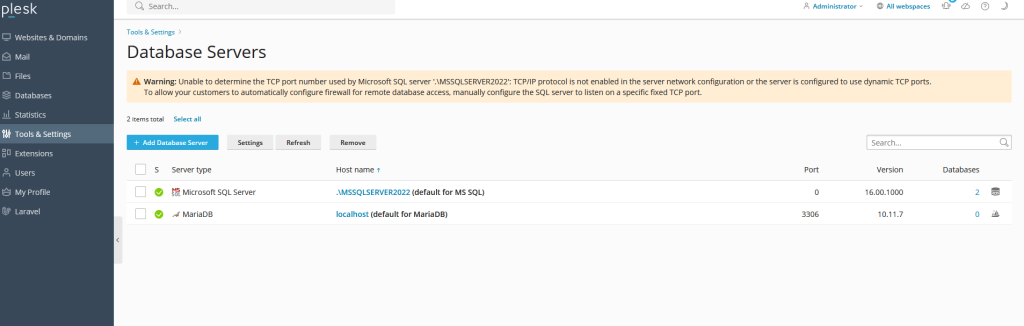
Enabling TCP/IP in the SQL Server
Here’s how you can enable TCP/IP in SQL Server:
1.Connect to the Plesk server via RDP.
2.Go to Start > All Programs > Microsoft SQL Server XXXX > SQL Server XXXX Configuration Manager. Note: XXXX is a version of MS SQL Server from the error message.
3.Expand SQL Server Network Configuration and click Protocols for MSSQLSERVERXXXX.
4.Double-click on TCP/IP:
4.1. On the Protocol tab, make sure that the TCP/IP protocol is Enabled.
4.2. Switch to the IP Addresses tab and scroll down to the IPAll section. 4.3. Specify default MS SQL port number 1433 (or a custom port number if 1433 is already used by another MS SQL Server instance) in the TCP Port field


Go to SQL Server Configuration Manager (Local) > SQL Server Services,
Right-click on SQL Server (MSSQLSERVERXXXX) and click Restart to apply the changes.

Log in to Plesk.
Go to Tools & Settings > Database Servers > .MSSQLSERVERXXXX > Settings and click OK to sync new settings with Plesk.
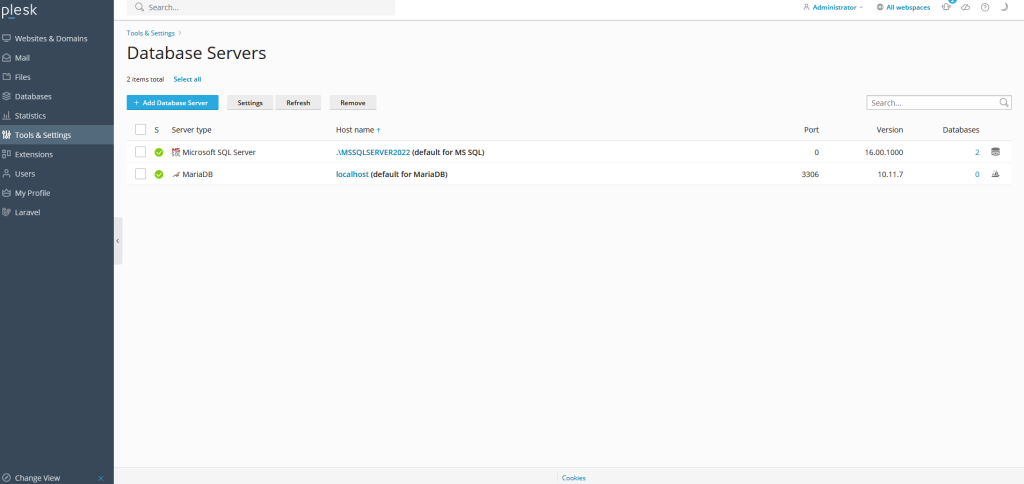
After sycn the server , the error will disappear and able to access using client SSSM.
 hostadmin